
My printer has a scanner complete with a document feeder to make scanning multipage documents easier (once you pull all the staples out). Unfortunately, the scanner is only single sided, making the sheet feeder much less useful. Rather than throw the whole thing out to get a double-sided scanner, I figured out a slightly clumsy way to get all the pages scanned in the right order. This also requires a little tool for reformatting the generated PDF.
Instructions
Scanning
Launch Image Capture, select your scanner and configure scan settings as shown in the image below.
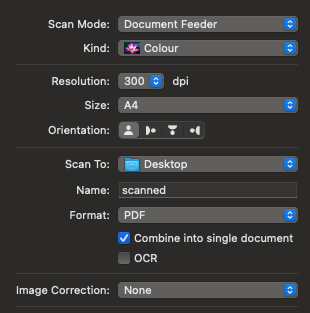
The key settings are:
Scan Mode: Document FeederName: set to the name of the PDF file you want to createFormat: PDFCombine into single document: make sure this is checked
Load your document into the document feeder on the scanner and click Scan in the Image Capture window. Wait for the scanner to complete scanning all the pages. You’ll now have a PDF file containing the odd pages of the document you just scanned.
Now we’ll scan the even pages. Pick up the bundle of paper that was ejected from the scanner and turn the bundle 180 degrees so that the text on the page at the top of the bundle is the first thing to go into the scanner. Put the bundle into the document feeder again. Click Scan a second time to scan the other side of the document.
This diagram hopefully makes the scanning process clearer.
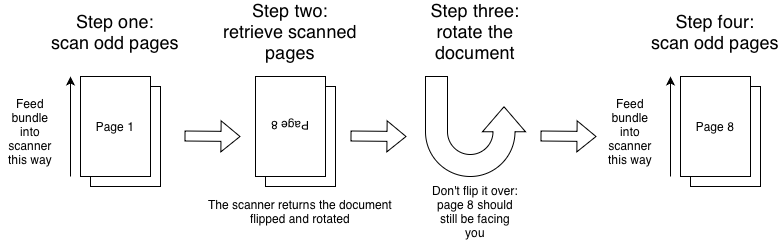
You’ll now have a PDF with the pages in the wrong order. For example, if you have a double-sided document with 8 pages, the pages in the PDF should be in the order 1, 3, 5, 7, 8, 6, 4, 2. This is fine– we’ll fix this later.
Repeat the process in this scanning section for any additional double-sided documents you want to scan. Just remember to change the Name you provide in the Image Capture window so you create a separate PDF file for each document.
Fixing page order
I’ve created a tool, named Wrong Side Up, that will fix page ordering when scanning like this. Download the latest version by visiting https://github.com/danielphil/wrongsideup/releases/latest and clicking on WrongSideUp.zip to download the zip file containing the program. Download the file and decompress it to get the app. Note: The app isn’t signed or notarized so you’ll need to bypass Gatekeeper to run it. Feel free to grab the source instead and set up the Python environment if you’d prefer not to use the application file I built.
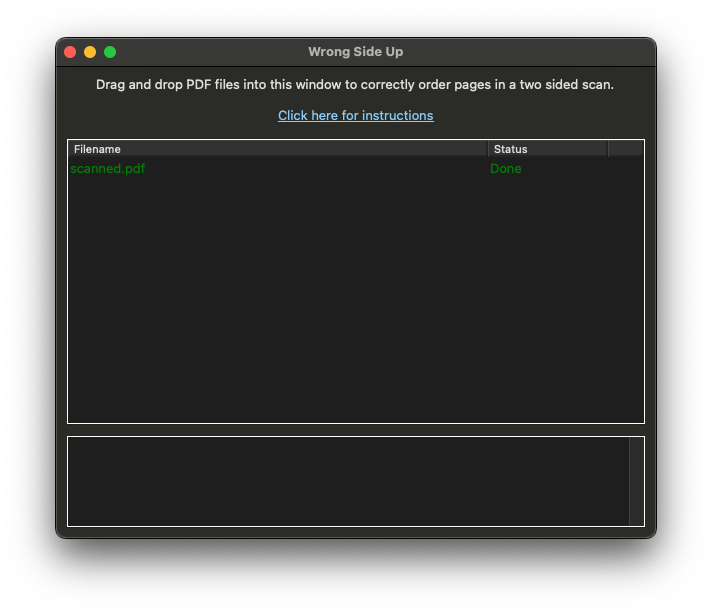
To use the application, drag and drop the PDF files you scanned into the application window. The application will load the PDF file, reorder the pages and then overwrite the original file with the page order corrected (make sure to backup anything important if necessary). You can drag multiple files into the app and it’ll process them all at once. Error messages will appear in the box at the bottom of the window if there’s any failures with handling a file. Click the close button when you’re done with the app.
That’s it! Hope this comes in useful.
Development
This tool started from a Python script I created that used pypdf to merge pages from two PDF files together. I rewrote the script to handle a single PDF file containing the results of the two-sided scan process documented here. The PDF handling code is only around 10 lines and the bulk of the code was for the GUI. It’s my first time trying to build a GUI app in Python, so I asked GitHub Copilot to do the work for me instead. It suggested tkinter to start with, but I struggled to get it installed properly and still couldn’t get the components needed for drag and drop installed. Instead, I switched to wxPython which just worked first time along with drag and drop. Pretty much all the GUI work was the result of asking Copilot to do the work for me and then tweaking the result to get what I wanted.
I wanted to create an app so that I didn’t have to deal with activating a Python virtual environment for running the tool and also could share it with less technical users. PyInstaller came in really useful here: I started with asking Copilot to create the files I needed to get things working and then modified the files to tidy things up. Copilot was a bit over-eager here as it generated me a setup.py that I didn’t need and I ended up regenerating the PyInstaller spec file again using PyInstaller’s command line options. Getting a macOS app was trivial with the tool and this is definitely something that I’m going to use for packaging little tools in the future. Copilot remains really useful for getting started on projects and quickly generating boilerplate UI code for small projects like this: generate something quickly for a little tool and then move onto the next project.
Source code for the Wrong Side Up tool can be found at the project GitHub page.